Lab exercise 0: Programming the target computer
How do you write a program for the T1 target computer, the myRIO? How can you run the program? What's really going on in computer memory as the program runs? How do you design a program? We will learn the answers to these foundational questions in this lab exercise. It will prepare us to get started with writing programs to interact with the rest of the T1 target system (e.g., the electromechanical subsystem) in the chapters that follow.
The objective of this lab exercise is to get acquainted with the following:
- Developing programs in the D1 development environment and running them on the T1 target system
- Designing a program and reading pseudocode
- Writing a C program for the T1 target computer
- Debugging a program running on the T1 target computer
This lab exercise requires that you first set up your D1 development environment1 as described in section 0.2. The T1 target system will be required, but only the components listed in chapter B are needed for this lab exercise.2 Set up each component in accordance with the instructions for your specific T1 version in section A.1. Connect your components in the manner described in the "Online Resources" section of the web page for this lab exercise ().
The adding machine program
We will design and write a program that turns the myRIO, keypad, and display into a basic adding machine. At their most basic, adding machines keep track of a number called the "total," which can be subjected to operations such as addition and subtraction. Here are the requirements:
- Present the current total on the display, starting with
0. - Support the addition and subtraction of floating-point numbers with user input via a keypad.
- Let the entry of a positive number imply addition and a negative number imply subtraction.
- Exit the program if
0is entered.
Designing the program
We will need to learn how to interact in a basic way with the keypad and display. However, before we get into such details, we should sketch out how the program should operate. An indispensable tool for sketching a program is pseudocode, a loose, program-like language that describes the functionality of the program without concern for syntax and implementation details. Consider the pseudocode of algorithm 0.1 for our main() function.

main() pseudocodeThe opening and closing of an FPGA session was described in section 0.6. It is usually best to move detailed procedures from main() to another function, as we have done here with interactive_add(). Pseudocode for interactive_add() is shown in algorithm 0.2.
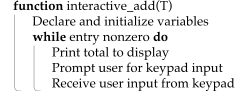
interactive_add() pseudocodeThe interactive_add() function's prototype should be
double interactive_add(double total); Here, total is an initial value for the total. While the user input is nonzero, the total should be printed to the display, the user should be prompted for keypad input, and this input should be parsed by the program.
Programming main and interactive_add
As shown here, the main() function can be written in three sections: front matter, primary program, and end matter.
int main(int argc, char **argv) {
  /* front matter */
  NiFpga_Status status;
  status = MyRio_Open();            // open the myRIO FPGA session
  if (MyRio_IsNotSuccess(status)) {
    return status;
  }

  /* primary program */
  interactive_add(0);               // call with initial total 0

  /* end matter */
  status = MyRio_Close();           // close the myRIO FPGA session
  return status;
}
The front matter and end matter open and close a myRIO FPGA session, as described in section 0.6. The primary program simply invokes the interactive_add() function with an initial total of 0. Before turning to the programming of interactive_add(), we need to learn how to use the double_in() function.
Receiving user input from the keypad and displaying the total
The supplied T1 C library includes the double_in() function, which we will write ourselves in lab exercise 1, but which we can simply apply for now. This function has two high-level uses: (1) prompting the user for an input by presenting a string on the display and (2) once the user has keyed in a number and pressed the key, returning the keypad entry as a double. The function's prototype is
double double_in(char *prompt);Understanding the argument in detail will have to wait for chapter 1. For now, it can be understood as a string. For our purposes in this lab exercise, the prompt can be used to display the total and prompt the user's input. For instance,
double summand;                                // declare
summand = double_in("Total: 0\nSummand: ");    // prompt/get double
The string literal "Total: 0\nSummand: " (\n means "new line") is not going to work for us: we can't hard-code 0 because we want to update it. A "formatted string" is necessary here, which allows us to programmatically insert a number into the string, such as
char prompt_string [40];            // declare string
sprintf(prompt_string,
        "Total: %5g. Summand: ",
        total);                     // construct string
This inserts total into a string assigned to prompt_string. The prompt_string was given a width of 40 chars because this is the width of two lines of the display (which does text wrapping). Clearly, there could be some issues if the total or a summand was too large. We have partially mitigated this with the "%5g" format, which prints only five significant digits. However, if an exuberant user enters enough digits, they may run off the screen. A more robust design should account for this possibility. Finally, don't forget that total will need to be declared a double, initialized to zero, and updated with the summand.
Programming interactive_add
The interactive_add() function can be written as
double interactive_add(double total) {
  double summand = -1;                  // initialize to nonzero value
  char prompt_string[40];               // declare string
  while (summand != 0) {
    sprintf(                            // construct string
      prompt_string,                    // prompt string location
      "Total: %5g\nSummand: ",          // formatted string to be prompt
      total);                           // substitute total into prompt
    summand = double_in(prompt_string); // prompt for and get double
    total += summand;
  }
  return EXIT_SUCCESS;
}
The double summand and char prompt_string[40] lines declare two variables: summand, for storing the user's entered summand; and prompt_string, for constructing a prompt string. The while loop has as its condition that summand not equal zero (which would indicate that the program should halt). The statements inside the block that follows will be executed until the entered summand is zero. The sprintf function constructs a string at the location of prompt_string containing the formatted string with total inserted at the position of "%5g".
The call summand = double_in(prompt_string); displays the prompt string to the user, allows the user input to enter a number through the keypad, and stores the number in summand. The statement total += summand adds summand to total and stores the result in total.
These two functions can be placed in a file, as shown in listing 0.3.
/* name, date, description, etc.
 */

#include <stdlib.h>
#include <stdio.h>
#include "MyRio.h"
#include "T1.h"

/* prototypes */
double interactive_add(double total);

/* definitions */
int main(int argc, char **argv) {
  /* front matter */
  NiFpga_Status status;
  status = MyRio_Open();            // open the myRIO FPGA session
  if (MyRio_IsNotSuccess(status)) {
    return status;
  }

  /* primary program */
  interactive_add(0);               // call with initial total 0

  /* end matter */
  printf_lcd("\fexit");               // display exit message
  status = MyRio_Close();           // close the myRIO FPGA session
  return status;
}

double interactive_add(double total) {
  double summand = -1;              // initialize to nonzero value
  char prompt_string[40];           // declare string
  while (summand != 0) {
    sprintf(prompt_string, "Total: %5g\nSummand: ", total);
    summand = double_in(prompt_string); // prompt for and get double
    total += summand;
  }
  return EXIT_SUCCESS;
}
Laboratory exploration and evaluation
On your development computer, open the rtcbook-T1D1 VM and launch Eclipse. In , Project Explorer includes the lab0 project, which is a "stub" for this lab exercise. Expand the project to reveal main.c, which you can edit in the Editor by double-clicking. Each of the lab exercise stubs includes a basic "hello world" main() function, which is a good starting place for developing new programs.
- Task 1
-
To ensure that everything is set up properly, we begin by building and running the "hello world" version of the project. With lab0 selected in Project Explorer, build the project with alt+b or, from the menu bar, select . The Console should show
Build Finished, and the executablelab0 - [arm/le]should appear in the Debug directory. - Task 2
-
Before we can run the executable created in task 1 on the myRIO, we must first establish a connection. Plug the myRIO universal serial bus (USB) connector into your development computer. The will open. Either close this window or click . Then, from the Remote Systems Explorer perspective, select the
172.22.11.2connection, . You will be prompted to log in. Use either the credentials that you created or the default myRIO credentials: usernameadmin, and an empty password. Also, select the option. You will also receive a warning message alerting you that the authenticity of the host cannot be established. You can safely click to continue connecting.3 Next, a dialog box appears, stating that the known_hosts file does not exist; again click . A dialog box stating "Log in with your NI-Auth credentials" will also be presented; click . Finally, Eclipse will ask if you would like to set up password recovery; click .4
- Task 3
-
Once the connection is established in task 2, navigate back to the , select
lab0in Project Explorer, and open the project Run Configurations with alt+r or menu bar . Under , selectlab0. (This run configuration has been preconfigured to simplify the setup.) Finally, to execute the program on the myRIO. The display should showHello World!, as should the Console in Eclipse. - Task 4
-
Now that everything is working through task 3, you can begin writing your adding machine program, as shown in listing 0.3, in the same main.c file. The printing of "Hello World!" is not necessary for the lab exercise, so that portion of the code should be replaced with that of your adding machine.
Write the adding machine program described here. Build and test frequently as you develop. Errors and warnings are shown in the Console pane. Debug any errors (as described next), rebuild, and run.
Using the debugger
A debugger is a powerful tool that allows a programmer to step through the execution of a program and inspect the output, variables, memory content, and even assembly code associated with each line of source code as it executes. The Eclipse IDE, like most IDEs, includes a debugger. We will describe next how to use the debugger in your lab exercise program.
- Task 5
-
Ensure that no program is running on the myRIO. In Project Explorer, select the lab0 project and select from the menu bar . Select the lab0 project and click on the menu bar. The Debug Perspective opens, showing the source code for the
main()function.
Execution is suspended at the line highlighted in the source code. Notice that the values of the program variables are displayed in the Variables pane anytime that execution is suspended. Notice also that the values of the processor registers are shown in the Registers pane.
- Task 6
-
At the debugger's initial starting point of execution, what variables have their values displayed? Why are
totalandsummandmissing from this list? These variables are currently out of scope, so they cannot be shown.
Resuming the program
Let us run the entire program from the debugger.
- Task 7
-
Click to resume execution of your program. This will resume execution until the end of the program. Are the resulting user interactions and outputs on the display and in the debugger consistent with your understanding of the program? Explain. (Remember that you must interact with the keypad and display for the program to complete.)
Running to a breakpoint
A breakpoint is an address in memory where we direct the processor to stop while we examine or modify the state of the myRIO and/or memory. The target processor runs continuously unless it is stopped at a breakpoint, as we saw when we resumed execution without a breakpoint.
- Task 8
-
Reexecute the program until the execution arrives at a breakpoint, as follows. Start the debugger from the menu bar . Suppose that we want to continue execution (from the beginning) and determine the values of our variables each time through the loop. Set a breakpoint one line below the
whilestatement, on the line with thesprintf()function, by double-clicking on the marker bar next to that source code line.
A breakpoint marker appears on the marker bar, directly to the left of the line where you added the breakpoint. The new breakpoint also appears in the Breakpoints pane. Run to the breakpoint with .
The Editor pane should now show execution suspended at that line. The Variables pane should now display the new values of the variables total, summand, and prompt_string. The window marks in yellow values that have changed.
- Task 9
-
Resume again to execute the first loop, which prompts the user for a summand on the display. Type a number into the keypad, and execution should pause again at the breakpoint. Again, inspect the variables to see how they updated.
- Task 10
-
Record (i.e., write down) a table of values of the variables
total,summand, andprompt_stringfor three consecutive loops through the debugger.
Stepping
The debugger can also step through the execution of the program in three ways:
- Step Over
-
Execute the current line, including any functions, and proceed to the next statement.
- Step Into
-
Execute the current line, following execution inside a function.
- Step Return
-
Continue execution to the end of the current function, then follow execution to the function's caller. This single-steps to the next sequential statement, but executes through functions and out of branches and loops before pausing.
To begin the stepping process, the target must be suspended, typically at a breakpoint.
- Task 11
-
Terminate any debugging session and remove all breakpoints. Then restart the debugging. Execution will be suspended at the beginning of the program. Now, single-step from this point using Step Over . Notice that a step corresponds to a single line of code. Notice also that the current values in the Variables pane change as you step. Interact with the program on the display and keypad. Eventually, once you enter 0+ on the keypad, execution exits via the
returnstatement. - Task 12
-
Terminate any debugging session and restart the debugging. Execution will be suspended at the beginning of the program. Single-step from this point using Step Over until the line with
interactive_add(0). Step Intointeractive_add()and Step Over each line, interacting with the display and keypad. Eventually, once you enter0on the keypad, execution exitsinteractive_add().
You may terminate the debugging at any time using Terminate . Consider repeating these problems and trying additional step commands.
If you have another development or target version than this text, see the companion website page corresponding to this lab exercise (rtcbook.org/tu).↩︎
There will be an option to emulate the electromechanical subsystem for the lab exercises that require it. This is primarily intended for development, but it can be used to substitute for hardware if it is inaccessible. Obviously, having the hardware is more fun!↩︎
This warning will also come up if you ever connect to a different myRIO.↩︎
Many of these dialog boxes will appear only the first time you connect the myRIO. When connecting to the myRIO in the future, only one or two dialog boxes are commonly seen.↩︎