0.3 The Eclipse workspace and hello-world
The Eclipse IDE organizes your code projects in a workspace: a directory that contains projects and some special Eclipse settings stored in the .metadata subdirectory. A code project is a directory containing your source code—the C code you will write—along with libraries, settings, and executable files—the compiled output that will run on the target computer. We will later explore all these items in detail.
There is a template workspace in the VM shared folder at Z:/workspace, outlined in figure 0.8, which includes some important libraries for programming the myRIO and a template project for each of the lab exercises.
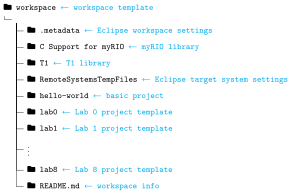
We recommend the use of the Git version control system for keeping track of the changes that you make to your workspace code and for collaborating with others. See chapter C for an introduction to this concept.
We are ready to explore the Eclipse IDE, where we will develop our C code. Open the Eclipse IDE; a dialog will appear that asks you to select your workspace and conveniently suggests Z:/workspace, which is our Eclipse workspace. Click OK.
Once the application loads, import some helpful preferences1 by selecting from the menu bar . In the Import dialog, select , and then click . Enter Z:/eclipse-preferences.epf. Verify that "Import all" is checked, and then click . These preferences need not be loaded subsequently.
Eclipse should now be ready to use; we will test it by running a simple program. The primary user interface "Perspective," the , has the layout shown in figure 0.9.
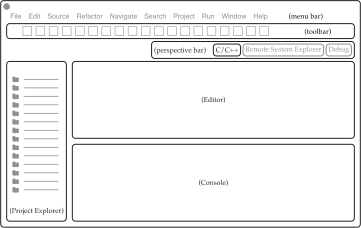
A list of your projects is displayed in the Project Explorer of the . Expand the hello-world project to reveal main.c, which is the primary C source file for the project. Double-click it to show its contents in the Editor panel. It includes the function main() of the project, which is the function where execution begins. It looks like the following:
int main(int argc, char **argv) {
  printf("Here"); // Print to Console
}
This is a basic C program that prints to the console with the printf() function. It would print "Here" as is, but change the function by replacing this with "Hello World!". Type Ctrl+s to save main.c.
Convert this source file (and, as we will learn, its associated library functions) into an executable program hello-world.exe that can be run on the VM (or a similar computer running Windows) by selecting the hello-world project and selecting from the menu bar or Ctrl+b (Build Finished should appear in the console). This builds the source code to files main.o and hello-world.exe under the Debug directory (if it does not appear, you may need to refresh the Project Explorer by hitting F5 or ).
We can also run (execute) the program from within Eclipse. With the hello-world project selected, select or type Ctrl+r. The Run Configurations dialog allows you to select from preconfigured run configurations, which tell Eclipse where and how to run the program that we just built. Choose and click . The console should show
Hello World!- IBM and Community (2022), § C/C++ Development User Guide, for an introduction to using Eclipse to develop C code
- Burnette (2005), parts I and II, introducing Eclipse
The Preferences file includes primarily custom syntax highlighting and keyboard shortcuts.↩︎
References
- IBM and Community. Eclipse Documentation. 2022.
- Burnette, E.. Eclipse IDE Pocket Guide: Using the Full-Featured IDE. O'Reilly Media. 2005.